

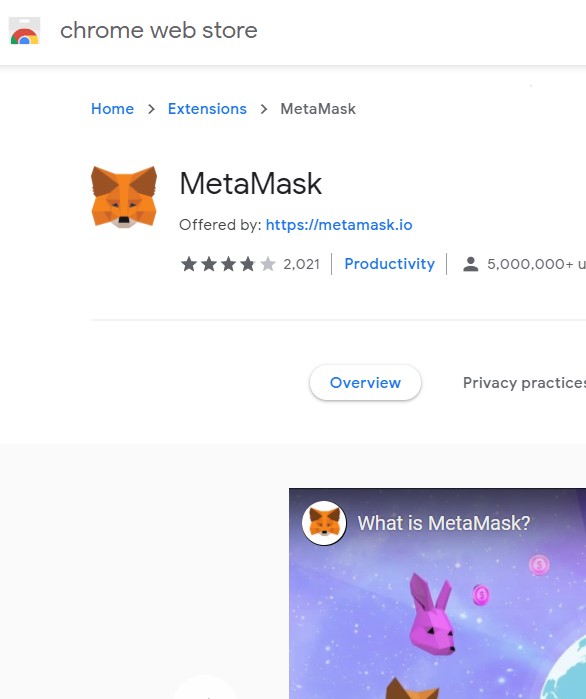
Install the MetaMask extension in Chrome or Firefox.
Purchase BNB, convert to Smart Chain and send to your MetaMask extension.
Trade your BNB for the Aquari token through PancakeSwap.
Reap the rewards of being an Aquari holder. Read more below for detailed instructions.
You'll need accounts with the following companies: coinbase and binance.
Protip: Once you set up your accounts, make sure to verify your identity so your funds aren't held unexpectedly.
If you're in the USA, use: https://binance.us
If you're outside the USA, use: https://binance.com
Make sure your coinbase account is set up and ready to go.
Once you buy Ethereum through Coinbase, retrieve your ethereum wallet address from binance's website and use it to transfer from Coinbase. Keep in mind there are gas (transaction) fees.


Use the "trade" button to make your conversions. To buy/sell quickly, process your orders as "Market Orders".
To convert ETH to USD, select ETH/USD
To convert USD to BNB, select BNB/USD
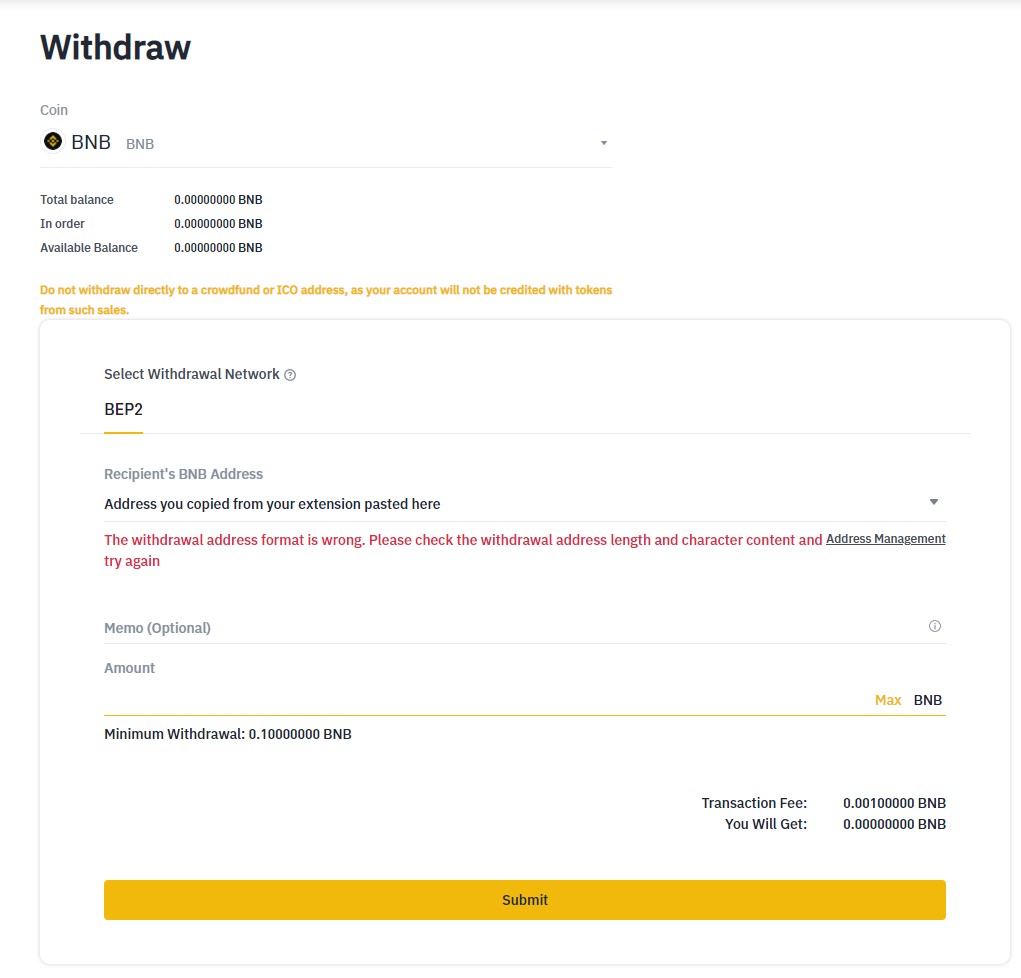
In the next step, you'll be withdrawing your funds into the binance extension you installed in Step 1. You'll use the "withdraw" button for this.
1. Make sure you're on the "Binance Chain Network"
2. Copy your address from the extension
3. Paste the address as shown in the screenshot and withdraw. Funds should show up in your extension in a few minutes. In rare instances, it may take up to an hour or so.



After you set up your MetaMask account, execute the following steps:
1. Click on the circle avatar in the top right > go to Settings > Networks > Add Network
2. Use the following settings:
Network Name: Smart Chain
New RPC URL: https://bsc-dataseed.binance.org/
ChainID: 56
Symbol: BNB
Block Explorer URL: https://bscscan.com
First we must convert our BNB into Binance Smart Chain (two different things) within the Binance extension.
1. In the Binance extension, switch to "Binance Smart Chain Network" and copy your address. Switch back to "Binance Chain Network" after.
2. Click on "Send" and paste your Binance Smart Chain Network address in the "Address" field. Ignore the Memo field.
3. Input the amount you want to convert into "BSC" and click send.
4. Switch over to Binance Smart Chain Network and your balance should show up after a few minutes.
We believe in a world without age-related diseases where everyone can live a healthier and longer life. So, join to our volunteer team!
Input your search keywords and press Enter.